What is driver card data?
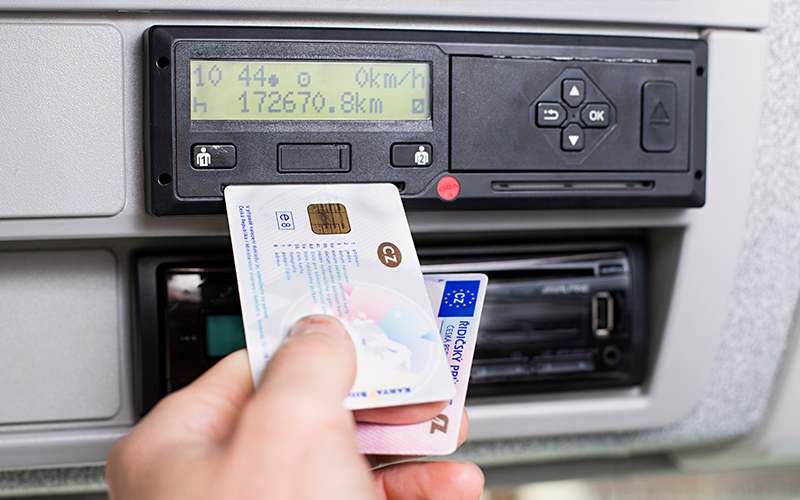
A driver card (also called a tachograph card) is a smart card issued to professional drivers in the EU. When inserted into a digital tachograph unit in a commercial vehicle, it records:
- Driving time and distance
- Break and rest periods
- Work and availability time
- Speed data
- Any exceptions or manual entries made by the driver
EU law requires drivers to download this data at least once every 28 days. The downloaded file is a .ddd file (digital data download), which must then be analysed using tachograph software to check for infringements and generate compliance reports.
What you need before you start
To download driver card data, you need three things:
1. A tachograph card reader
A card reader is a hardware device that reads the smart chip on the driver card and transfers the data to a computer or mobile device. There are two main types:
- Desktop or USB card readers: plug into a computer via USB-A. Best for office-based downloads.
- Mobile card readers: connect to a smartphone via USB-C or OTG adapter. Best for drivers downloading on the road.
The TachoReader USB Lite is compatible with both Generation 1 and Generation 2 smart tachograph cards, and works on Windows, Mac, and Android via OTG.
2. Tachograph analysis software or a cloud platform
The card reader transfers raw data. Software is required to parse, display, and analyse that data. Options include desktop software (installed locally) or cloud-based platforms like TachoCard, which store and analyse the data in the browser without installation.
3. The driver card itself
The card must be physically present. It cannot be downloaded remotely. Remote download applies only to vehicle units (tachograph units built into the truck), not to driver cards.
How to download driver card data: desktop method
Step 1: Connect the card reader to your computer
Plug the USB card reader into any available USB-A port on your computer. On Windows 10 and 11, no additional drivers are required for standard card readers. On Mac, the reader should be recognised automatically.
Step 2: Insert the driver card
Slide the driver card into the card reader slot with the chip side facing down (or as indicated on the reader). You will typically hear or feel a click when the card is seated correctly.
Step 3: Open TachoCard in your browser
Go to app.tacho-card.com and log in to your account. If you do not have an account, you can register for free.
Step 4: Start the download
In TachoCard, go to Upload and select Read from card reader. The platform will detect the connected card reader and read the driver card automatically. This process takes between 10 and 60 seconds depending on how much data is on the card.
Step 5: Review the results
Once the download is complete, TachoCard displays:
- The driver's remaining daily and weekly driving time
- Any infringements detected, with category (MI, SI, VSI, MSI) and the specific rule violated
- The AI risk score for the driver
- The full activity timeline
You can download a PDF compliance report directly from this screen.
How to download driver card data: mobile method (Android)
Step 1: Connect the card reader to your smartphone
Use a USB-C to USB-A OTG adapter to connect the card reader to your Android phone. Most modern Android phones (Android 6.0 and above) support USB OTG by default.
Step 2: Install the TachoCard app
Download the TachoCard app from Google Play. Open the app and log in to your account.
Step 3: Insert the driver card
Insert the driver card into the connected reader. The TachoCard app will detect the card reader and the card automatically.
Step 4: Download and analyse
Tap Download card in the app. The download takes 10 to 60 seconds. Results are displayed immediately and synced to your TachoCard cloud account.
Alternative method: uploading a .ddd file directly
If you already have a .ddd file downloaded by another tool or system, you can upload it directly to TachoCard:
- Log in to app.tacho-card.com
- Go to Upload and select Upload .ddd file
- Drag and drop the
.dddfile, or click to browse - TachoCard will parse and analyse the file immediately
This method works for both driver card files and vehicle unit files.
What is a .ddd file?
A .ddd file is the standard output format for digital tachograph downloads, defined by EU Regulation (EU) No 165/2014 and the technical standards it references (ETSI TS 101 573).
The file is binary. It cannot be opened in a text editor or spreadsheet. It can only be read by software that understands the EU tachograph data format specification.
A typical driver card .ddd file is between 50 KB and 5 MB, depending on how much activity is stored on the card. Driver cards store approximately 28 days of driving data.
Common questions about .ddd files:
.dddfiles are the same as.TGDfiles in some systems- They can contain data from Generation 1 and Generation 2 smart tachographs
- The format is read-only and cannot be edited without invalidating the digital signature
How often must you download the driver card?
Every 28 calendar days. The clock starts from the last download, not the calendar month. If a driver's card was last downloaded on 5 May, the next download must happen by 2 June.
Vehicle units (the tachograph device in the truck) must be downloaded every 90 days, using a company card, not the driver card.
Missing these deadlines is a serious infringement under EU law and can result in fines depending on country and authority.
Troubleshooting common issues
Card reader not recognised by the computer
Try a different USB port. If using a USB hub, try plugging directly into the computer. On Windows, check Device Manager to confirm the reader appears without errors.
Driver card not detected after insertion
Remove and reinsert the card. Check that the gold chip is clean and not scratched. Try the card in a different reader if available.
Download completes but file appears empty
This can happen if the card has been recently reset (for example, after a card replacement). A new card will contain no historical activity data.
Invalid card error
Some older card readers do not support Generation 2 smart tachograph cards. Ensure your card reader explicitly states Gen 2 compatibility.
Frequently asked questions
Can a driver download their own card?
Yes. Drivers can use a personal card reader and TachoCard's free driver plan to download and review their own data.
Does a download erase the data from the card?
No. Downloading copies the data from the card. It does not delete it.
Can I download a card that is expired?
Yes. An expired driver card can still be read and its historical data downloaded.
How long does a download take?
Between 10 and 90 seconds, depending on card data volume. Average is usually 20 to 40 seconds.
Can I download the vehicle unit as well as the driver card?
Vehicle unit downloads require a company card inserted directly into the tachograph unit in the vehicle. This is separate from driver card downloads.
Start downloading with TachoCard
TachoCard's free driver plan lets any driver download and review card data immediately.
Related articles
- The EU 28-day download rule explained
- Understanding infringement categories
- Choosing the right tachograph card reader
- Tachograph driver card cost: how much it is & how to order one
- TachoCard features
- Compare plans and pricing
Sources: EU Regulation (EU) No 165/2014; EU Regulation (EC) No 561/2006; ETSI TS 101 573.